Global Hotkeys
Mid-game, mid-call, mid-take, it doesn't matter. Your hotkeys work everywhere, even fullscreen, for both fast cycling and direct device jumps. Set them once and never touch a menu again.
 For macOS
Audio blasting from your speakers, headset silent, and you're dead before System Settings even opens. AudioFlip gives macOS the hotkey it forgot: switch audio instantly, from any app.
30-day money-back guarantee · No questions asked
Switched to Headphones
Press a hotkey. See the switch immediately.
"Love it! A real time saver. Keeps the focus in the right place. Very recommended."
Mid-game, mid-call, mid-take, it doesn't matter. Your hotkeys work everywhere, even fullscreen, for both fast cycling and direct device jumps. Set them once and never touch a menu again.
Every switch shows a clean toast with the device name and icon, so you know what changed right away. No second-guessing and no audio surprises.
Cycle through the devices you actually use. Leave old monitors, docks, and one-off USB gear out of the rotation.
Tag devices as headphones, speakers, monitors, webcams, or mics. Matching icons make it obvious what you switched to.
One hotkey for output, another for input. Ideal when your headphones stay put but the mic needs to change.
Assign a dedicated shortcut to each device for one-step jumps, straight to specific headphones, mics, or interfaces.
Built in Swift for macOS, small enough to stay out of the way. No Electron, no bloated helper, no wasted RAM.
A device list, two hotkeys, and a menu bar icon. Real screenshots, not mockups.
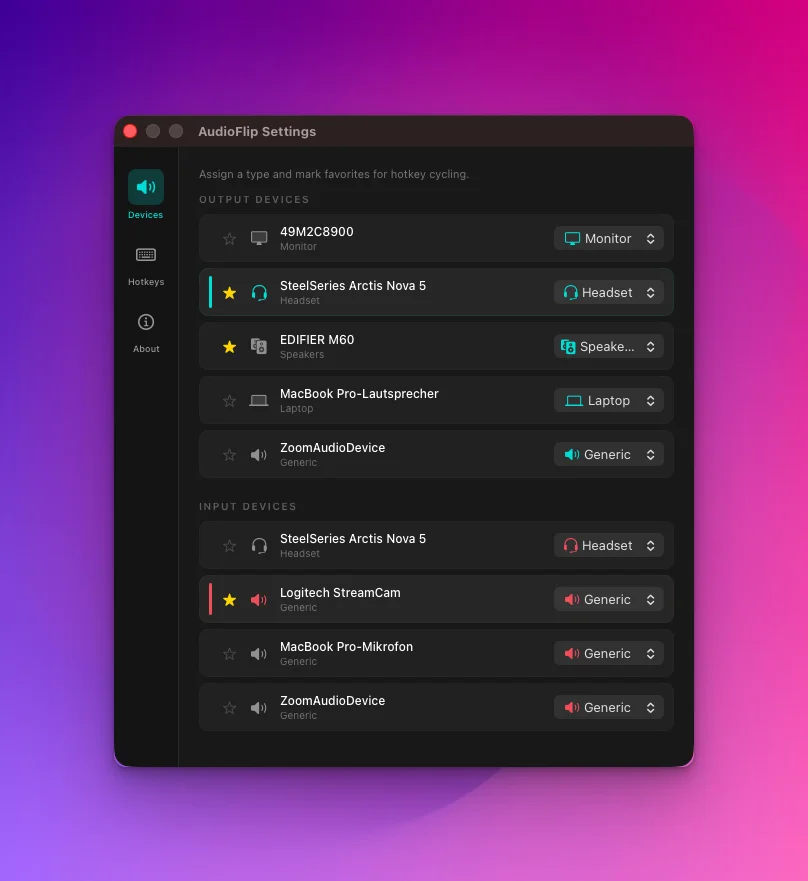
Only starred devices join the hotkey cycle. The dusty HDMI monitor stays out.
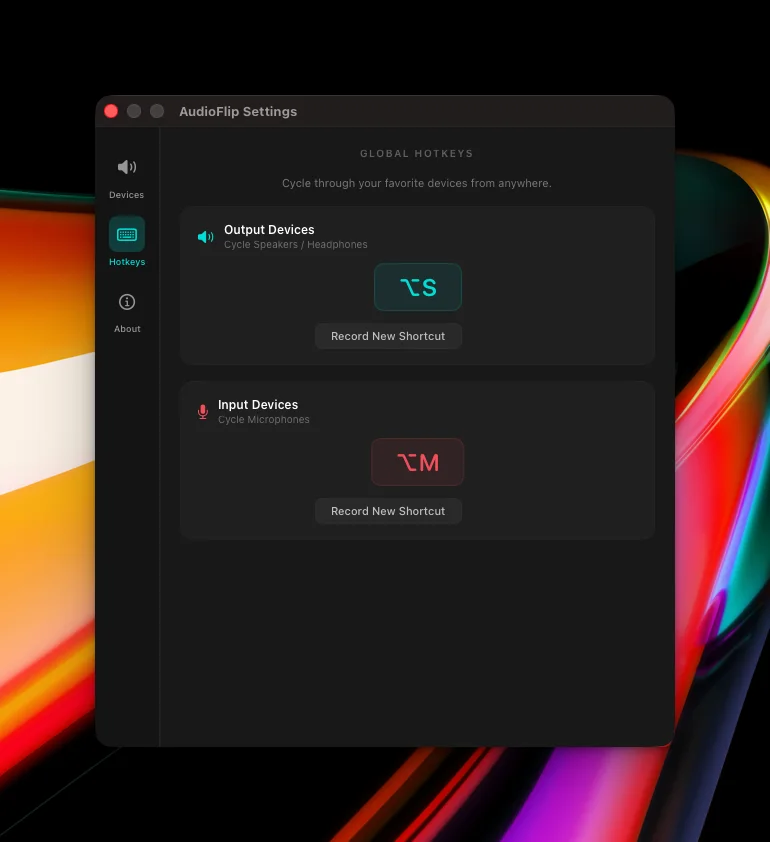
⌥S and ⌥M out of the box. Change them, or add direct shortcuts per device.
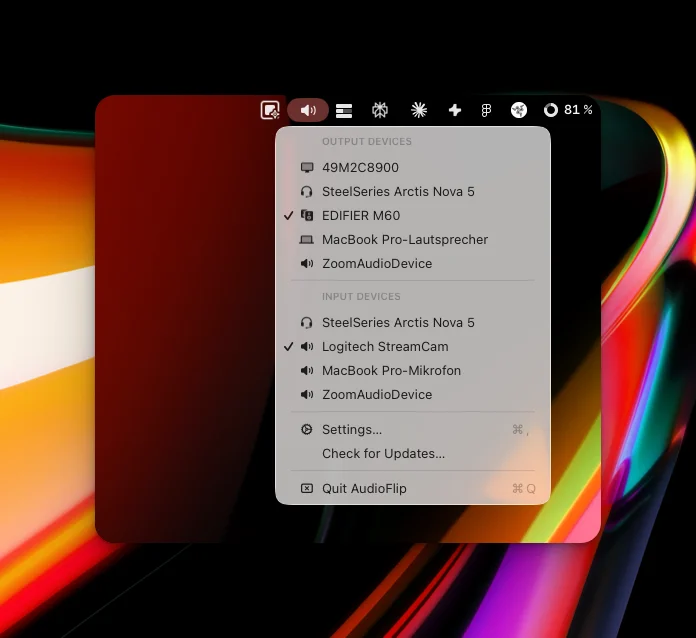
Every device one click away, with the active output and input checked.
You tab out to fix your audio. You die. You lose the round. The take is ruined. The call sounds terrible. AudioFlip keeps you exactly where you are. Press a key, switch done, back to it.
AudioFlip starts with ⌥S for output and ⌥M for input, and you can change both anytime in Settings. For power users, add dedicated shortcuts for individual devices and jump straight to a specific endpoint in one keystroke.
Teal carries output, coral carries input. The two frequencies AudioFlip toggles, one keypress apart.
One keypress cycles your favorite speakers and headphones. Blast the room or drop into your headset, no menu diving.
The same speed for your microphone. Jump from the built-in mic to your interface without leaving the call.
A tiny native Swift app with an instant on-screen toast. The whole flip happens without breaking your focus.
If you want instant device switching, AudioFlip gives you the missing hotkeys and feedback without turning into a full audio-routing suite or a $39 utility.
| Feature | macOS Built-in | AudioFlip | SoundSource |
|---|---|---|---|
| Menu bar switching | ⌥ Click | ✓ | ✓ |
| Global hotkeys | ✕ | ✓ | ✕ |
| Visual switch confirmation | ✕ | ✓ | ✕ |
| Favorites cycling | ✕ | ✓ | ✕ |
| Direct per-device shortcuts | ✕ | ✓ | ✕ |
| Separate Input/Output control | ✓ | ✓ | ✓ |
| Per-app audio routing | ✕ | ✕ | ✓ |
| Per-device EQ + effects | ✕ | ✕ | ✓ |
| Memory footprint | n/a | < 5 MB | ~80 MB |
| Price | Free | $9.99 | $39 |
| Best for | Casual use | Hotkey-first switching | Pro audio routing |
Ears is made by retina.studio. AudioSwitcher is the free menu-bar app at macmenubar.com. SoundSource is by Rogue Amoeba.
macOS doesn't include a global hotkey for switching audio devices. The closest built-in option is ⌥-clicking the volume icon in the menu bar, but that still requires a mouse click and interrupts your workflow. AudioFlip adds the missing shortcut: press a key from any app, even fullscreen games or meetings, and your output or input switches instantly with on-screen confirmation.
If fast device switching is your only goal, AudioFlip is purpose-built for it. Global hotkeys, favorites cycling, and a visual toast, all in a lightweight native Swift app for $9.99. If you need per-app audio routing or a system-wide EQ, SoundSource ($39) goes deeper but costs 4× more and uses significantly more RAM.
Yes. AudioFlip switches any audio device macOS recognizes: AirPods, Bluetooth headphones, USB DACs, HDMI monitors, and built-in speakers. Add the ones you actually use to Favorites so they're the only devices in your cycle.
Install AudioFlip, mark your speakers and headphones as favorites, and assign a hotkey (default: ⌥S for output, ⌥M for input). From that point on, a single keypress cycles your audio output, and you can add direct device shortcuts for one-key jumps without opening menus.
No. AudioFlip is a one-time purchase: $9.99 during the Summer Deal, $14.99 after. Updates install right from the app, and every purchase comes with a 30-day money-back guarantee.
Every time I sat down to game, it was the same routine. Switch the output to headphones, switch the mic from built-in to headset. Four or five clicks, buried in System Settings. Every single time. And half the time I'd forget before launching the game. Teammates already talking. Audio still on speakers.
It just annoyed me. macOS has no hotkey for this. So I built one.
$9.99 instead of $14.99, one-time. Checkout takes a minute on Gumroad, and your hotkeys are set before your next call or match.
30-day money-back guarantee · No questions asked